EN | δΈ­ζ–‡

πŸ”₯ MTCode AI Phoenix

A DirectLink-powered AI coding assistant for VS Code and MTCode Studio β€” quick to try, self-hosted, and useful for learning, coursework, and small projects.

πŸ›‘ Privacy β€” Code context is sent to your selected model server, not relayed through MTCode infrastructure.
⚑ Quick Start β€” Use MTCode-LLM through MTCode Server with no public IP or port forwarding.
πŸŽ“ Learning Friendly β€” Practical for students, small projects, and experimenting with coding models.

What Is MTCode AI Phoenix?

MTCode AI Phoenix is an AI coding assistant extension for VS Code and MTCode Studio. It provides inline code completion and a sidebar chat interface connected to an LLM server you control.

It gives students, beginners, and small teams an accessible path to self-hosted AI coding assistance. Run MTCode-LLM through MTCode Server, invite users if needed, and connect from the editor without exposing the model server to the public internet.

With a mid-size coding model running on a consumer GPU, AI Phoenix can answer programming questions, explain code, generate examples, and provide lightweight completions. It is well suited for learning, coursework, prototypes, and small software projects, but it is not positioned as a replacement for frontier cloud coding systems on large codebases.

AI Phoenix includes the MTCode Portal core library, so it can connect to DirectLink-published LLM servers without a separate MTCode Portal installation.
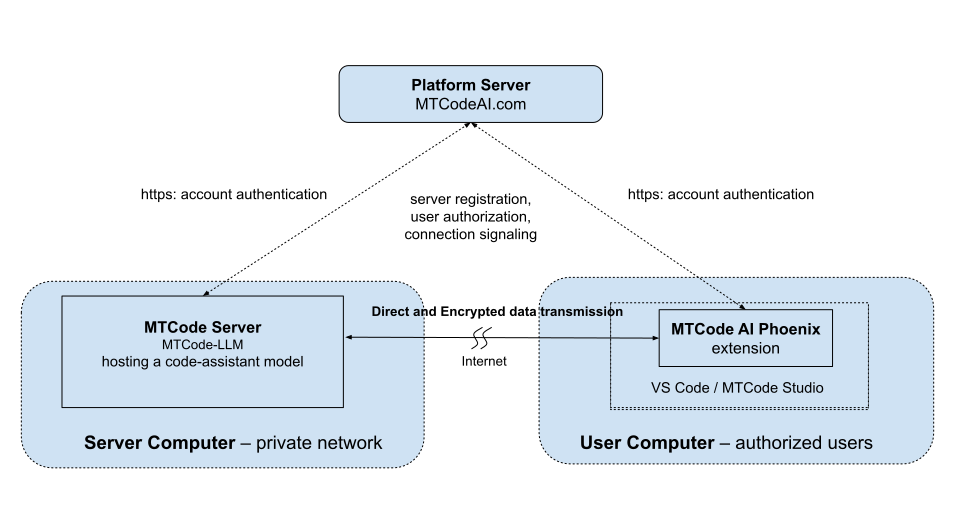
MTCode AI Phoenix coding assistant architecture diagram

AI Phoenix connects your editor to a private coding-assistant model server through MTCode DirectLink.

⚑

Inline Completion

Get code suggestions as ghost text while you type. Accept the full suggestion, a line, or a word when it is useful.

πŸ’¬

AI Chat

Ask programming questions, request explanations, generate code, and discuss the current file with Markdown and syntax-highlighted responses.

πŸ”’

Self-Hosted Model Path

AI Phoenix talks to self-hosted LLM server directly. MTCode coordinates connection setup, but application data is not relayed through MTCode infrastructure.

Watch AI Phoenix in Action

See inline completions, chat responses, context handling, and server connection setup in a real coding session. Click to play.

Getting Started

1

Set Up an LLM Server

Install and launch MTCode Server, choose MTCode-LLM, and load a coding-assistant model that fits your GPU.

2

Invite Users If Needed

If other students, classmates, or team members should use the server, invite them from your administrator account. Each user gets their own account.

3

Install AI Phoenix

Install the AI Phoenix extension in VS Code, or use MTCode Studio, where it is already included.

4

Connect to the Server

Sign in from the AI Phoenix sidebar, choose an authorized LLM server, and wait for the status to show that the server is ready.

5

Start Coding

Ask questions in the sidebar chat or type in the editor to receive inline completions. The current file can be used as context, and additional files can be attached when needed.

Inline Code Completion

AI Phoenix supports context-aware completion using coding models that understand text before and after the cursor. This is useful for small functions, boilerplate, examples, refactoring assistance, and learning unfamiliar APIs.

How Suggestions Appear

  • The extension sends configurable prefix and suffix context to the selected LLM server when generating suggestions.
  • Suggestions appear as ghost text after the current cursor position.
  • You can enable or disable inline completion from the extension title bar.

Accepting Suggestions

  • Tab β€” accept the full suggestion.
  • Shift+Tab β€” accept the first line.
  • Ctrl+Right β€” accept the first word.
  • Esc β€” dismiss the suggestion, or keep typing to receive updated suggestions.

AI Chat Interface

The sidebar chat is designed for practical programming help, including explanations, examples, debugging ideas, code generation, and questions about the current file.

Chat Features

  • Markdown responses with syntax-highlighted code blocks.
  • Streaming answers so you can see responses as they are generated.
  • The current editor file is used as context and updates automatically when the active file changes.
  • Additional context files can be attached when a question spans multiple files.

Useful For

  • Understanding unfamiliar code.
  • Generating examples for course assignments or small tools.
  • Asking language, library, and debugging questions.
  • Learning how to structure a function, class, or script.

Model Guidance

AI Phoenix works best with coding-assistant models served through MTCode-LLM or another OpenAI-compatible endpoint published through MTCode Server. Larger models generally provide stronger answers but require more GPU memory and may run more slowly.

We recommend Qwen Coder models as a good starting point because they have been tested extensively with AI Phoenix and work well for both coding chat and inline completion.

Integration With MTCode Studio

MTCode AI Phoenix is included with MTCode Studio. This gives new users a quick path: install Studio, connect AI Phoenix to a DirectLink-published MTCode-LLM server, and start experimenting with AI-assisted coding in one environment.

Γ— Γ—