Publish any local TCP service through MTCode DirectLink — SSH, web apps, remote desktop, Ollama, vLLM, LM Studio, OpenClaw, or your own custom server. Built-in MTCode-LLM and MTCode-Diffusion servers are included for a fast start with local AI.
MTCode Server runs on the computer that hosts your services. It registers selected local TCP ports with MTCode DirectLink and makes them accessible to authorized users through MTCode Portal — without exposing the whole computer or opening public ports.
It works with any TCP-based service, including HTTP, HTTPS, WebSocket, gRPC, SSH, SFTP, RDP, VNC, Ollama, LM Studio, vLLM, OpenClaw, and custom applications.
For a quick start with local AI, MTCode Server also includes:
MTCode Server authenticates with the platform using your administrator account and registers the local services you choose to share.
Registered services appear automatically in each authorized user’s MTCode Portal. When a user connects, MTCode Server establishes a direct peer-to-peer data channel with that user’s MTCode Portal.
Application traffic flows directly between the two endpoints and is end-to-end encrypted, without passing through an intermediate relay.
Only the services you register are exposed to authorized users. The rest of the computer remains inaccessible.
On a desktop computer with a RTX 4090 24 GB GPU, MTCode Server registers three servers: SSH Server, MTCode-LLM, MTCode-Diffusion
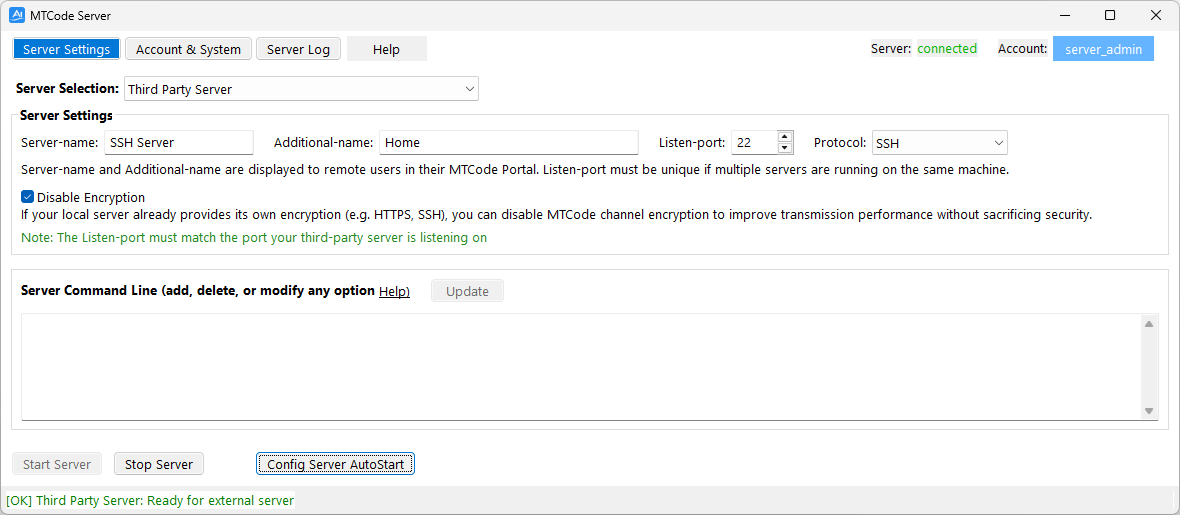
Register SSH Server
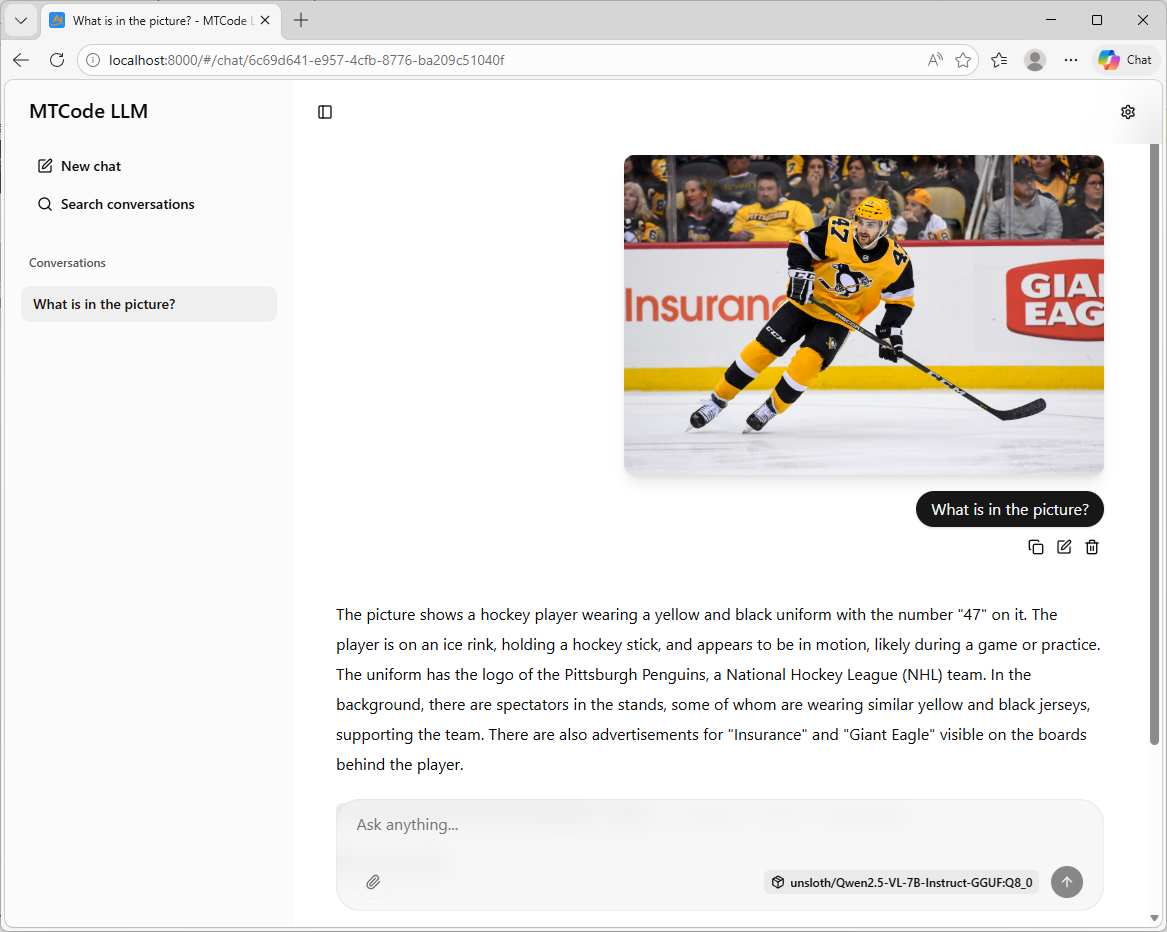
Register LLM Server
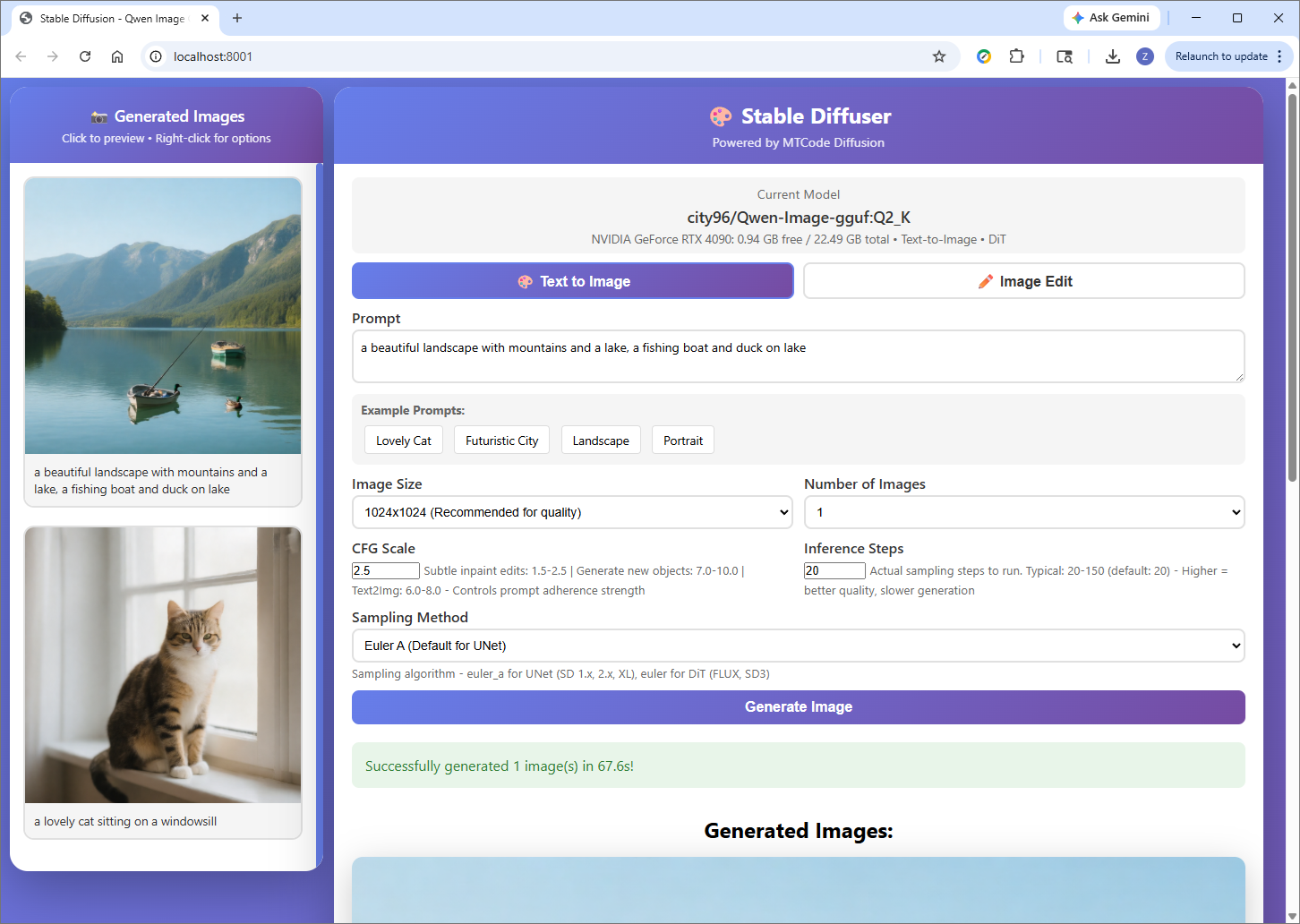
Register Diffusion Server
If you only plan to use third-party services, the CPU-only package is sufficient and much smaller.
MTCode Server supports three usage modes, listed in typical order of adoption:
Your service is already running; you simply register its port.
MTCode Server launches and manages the service process for you.
If you don’t already run local AI services, MTCode Server includes:
Both include:
ssh -p <port> localhost
ollama serve.
The optional protocol setting enables:
MTCode Server registering a local SSH server on port 22 — channel encryption is disabled since SSH provides its own end-to-end encryption
Instead of starting your service in a separate terminal, let MTCode Server launch and manage it for you. This simplifies day-to-day operation and makes auto-start straightforward: when MTCode Server starts at login or boot, your service starts automatically with it.
ollama serveIf you don't already run a local AI server, MTCode Server includes two of them, MTCode-LLM and MTCode-Diffusion. You could start an AI server right away.
MTCode-LLM — web UI for attaching files, questions and answers
MTCode-Diffusion — web UI for text-to-image generation and image editing
Configure MTCode Server to start automatically so your AI server is always available — even after a computer restart.
Configures the operating system to log in automatically at boot, then launches MTCode Server and starts the AI server — no user interaction needed. Ideal for dedicated server machines that should resume service after a power outage or reboot. Requires administrator privileges to set up.
MTCode Server launches automatically after you log in to your computer and starts the AI server immediately. No administrator privileges required — just log in and your server is ready.
Launch MTCode Server manually when you need it. Full control over when the server runs.
| Operating System | Windows 10+, macOS 11+, or Linux (e.g. Ubuntu 20.04+, Fedora, Arch) |
| CPU | 64-bit processor |
| RAM | 8 GB |
| GPU | Optional (for third-party servers that do not require a GPU) |
| GPU | GPU with 8 GB+ VRAM |
| VRAM for LLMs | 8 GB for 6B models with 4096 context size, 16 GB for 10B models with 8192 context size, 24 GB for 14B models with 16384 ~ 32768 context size |
| VRAM for Image Gen | 8 GB for SD 1.x/2.x, 12 GB for SDXL/SD3, 16 GB+ for Flux, 24 GB+ for Qwen |