A free VS Code-based editor that adds multi-workspace tabs and integrated project configuration, build, and debugging for C/C++ and Python projects.
No telemetry.
Free forever
MTCode Studio is a customized distribution built on the VS Code open-source codebase. It keeps the familiar VS Code editing experience while adding multi-workspace tabs and integrated project configuration, build, and debugging for C/C++ and Python projects — especially useful for developers who like VS Code but want a more Visual Studio-like project workflow.
MTCode Studio is a standalone editor, independent from MTCode DirectLink. It is free to use with no usage limits.
Organize work into named workspaces and switch between them from a tab bar inside one window.
Configure C/C++ build settings or Python run tasks through dialogs. Build and Debugging are seamlessly integrated.
No paid tier, subscription, or usage limit. Independent from MTCode DirectLink.
CMakeLists.txt and .vscode/tasks.json for C/C++ builds, and .vscode/launch.json for running and debugging C/C++ and Python projects.
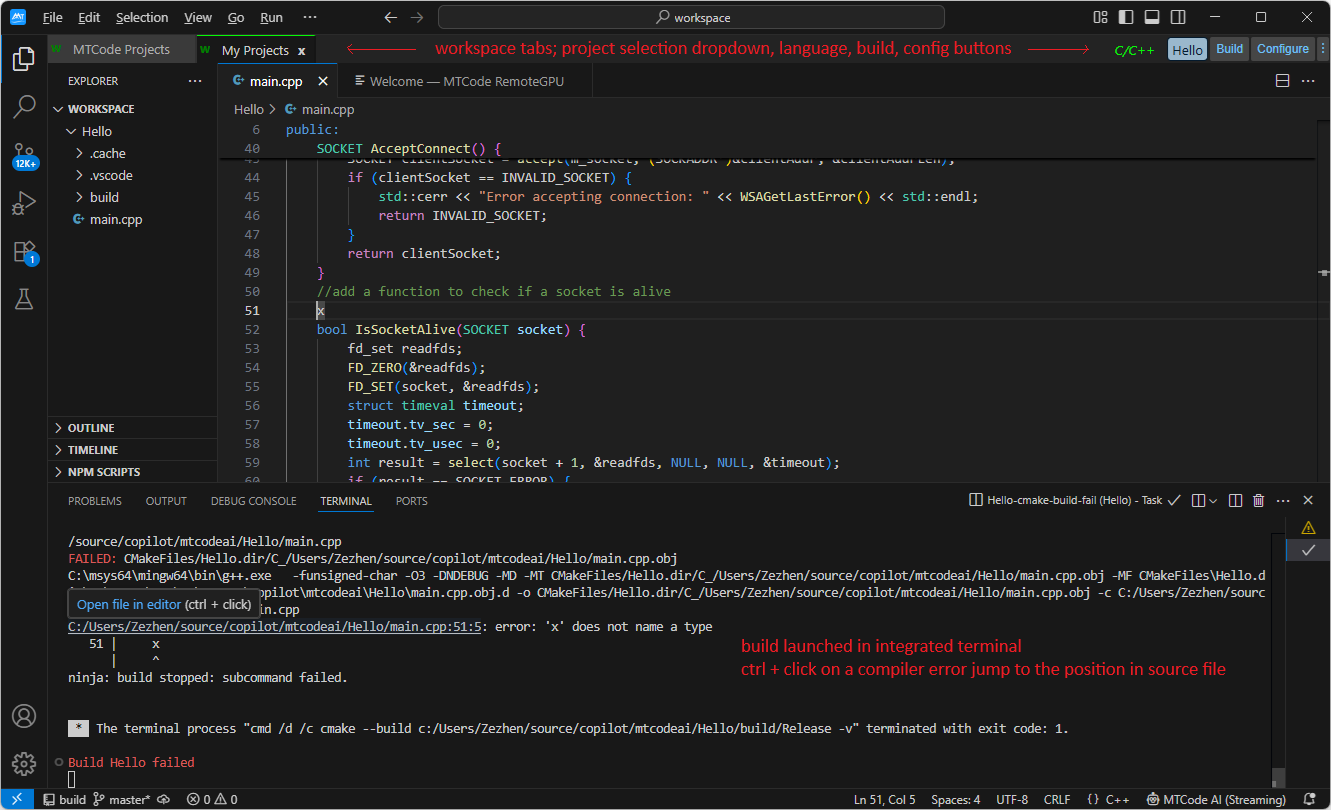
MTCode Studio — switch between workspaces via tabs, select active project from the dropdown, then configure, build, run, or debug without leaving the editor.
A walkthrough of multi-workspace management, project configuration, build/debug workflow, and the optional AI Phoenix coding assistant. Click to play.
MTCode Studio adds a workspace tab bar to help you keep separate projects, clients, courses, experiments, or repositories organized without opening a separate editor window for each context.
The project toolbar sits on the workspace tab bar. It gives you quick access to the active project folder, language Id, configuration dialog, build commands, and Python task selection.
Lists folders in the active workspace so you can choose which project to configure, build, run, or debug.
Shows the detected language of the active project and lets you override it when automatic detection is not what you want.
Opens the project-specific configuration dialog for C/C++ build settings or Python task settings.
For C/C++ projects, MTCode Studio provides a guided configuration dialog that can generate CMake files, build tasks, and debug configurations. After setup, you can use the Build command in the toolbar to compile your project, and use the standard Run/Debug workflow to launch or debug it.
The experience is designed to feel closer to Visual Studio-style project configuration and build management, while keeping the familiar VS Code editing environment.
MTCode Studio automatically detects available Python interpreters. For each Python project, you can select an interpreter, add another interpreter or environment, and define multiple named tasks.
This is especially useful for machine-learning workflows, where training, inference, evaluation, preprocessing, and experiments may each use different scripts, arguments, or datasets.
.vscode/launch.json.${env:dataset-1}, ${env:dataset-2}, and ${env:dataset-3}.MTCode Studio includes MTCode RemoteGPU and MTCode AI Phoenix as preinstalled extensions for convenience. The editor itself is standalone and does not depend on MTCode DirectLink. If you do not need these extensions, you can disable or remove them just like any other VS Code extension.
Connect to authorized MTCode GPU Server instances from the editor, upload Python projects, run jobs on remote GPUs, and stream results back to your workspace.
Experiment with a self-hosted AI coding assistant connected through MTCode DirectLink. Useful for learning, coursework, small projects, and local-model workflows.
Use your existing extensions, themes, settings, and development habits. MTCode Studio keeps the familiar VS Code foundation while adding its own workflow features.